Module 5: Generative AI Artistry in Google Slides
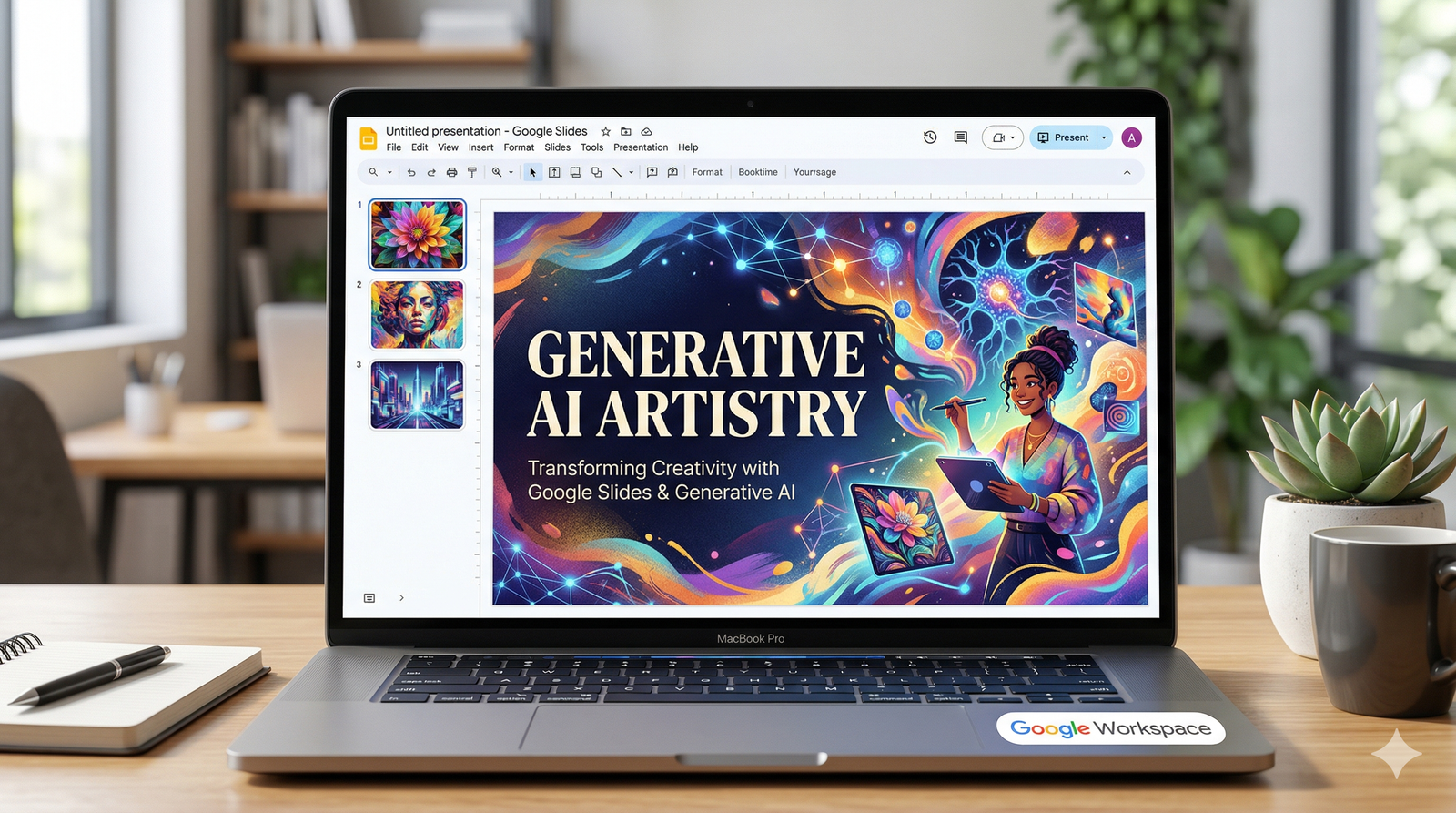
This module explores the integration of Gemini (powered by the Nano Banana 2 model) directly into the Google Slides workflow. You will learn how to move beyond static, generic stock photos by using natural language to "program" the perfect visual for your narrative, ensuring every slide is high-impact and unique.
1. The Anatomy of the Image Generation Side Panel
In Google Slides, the image generation tool is not a separate app; it is a contextual assistant that understands your presentation's layout and needs.
The Activation Point: Click the "Create an image" (sparkle icon) in the top toolbar or right-click a blank area of a slide.
The Prompt Field: This is where you input your descriptive text.
Style Selection: Below the prompt box, Gemini offers a carousel of pre-set styles (e.g., Photography, Vector, Sketch) to help guide the AI's output without requiring complex technical keywords.
Aspect Ratio Awareness: Gemini automatically generates images optimized for the standard 16:9 or 4:3 slide layouts.
2. Crafting "High-Signal" Prompts
To generate a professional image, you must move from "low-signal" (vague) prompts to "high-signal" (detailed) prompts.
3. Maintaining Visual Continuity
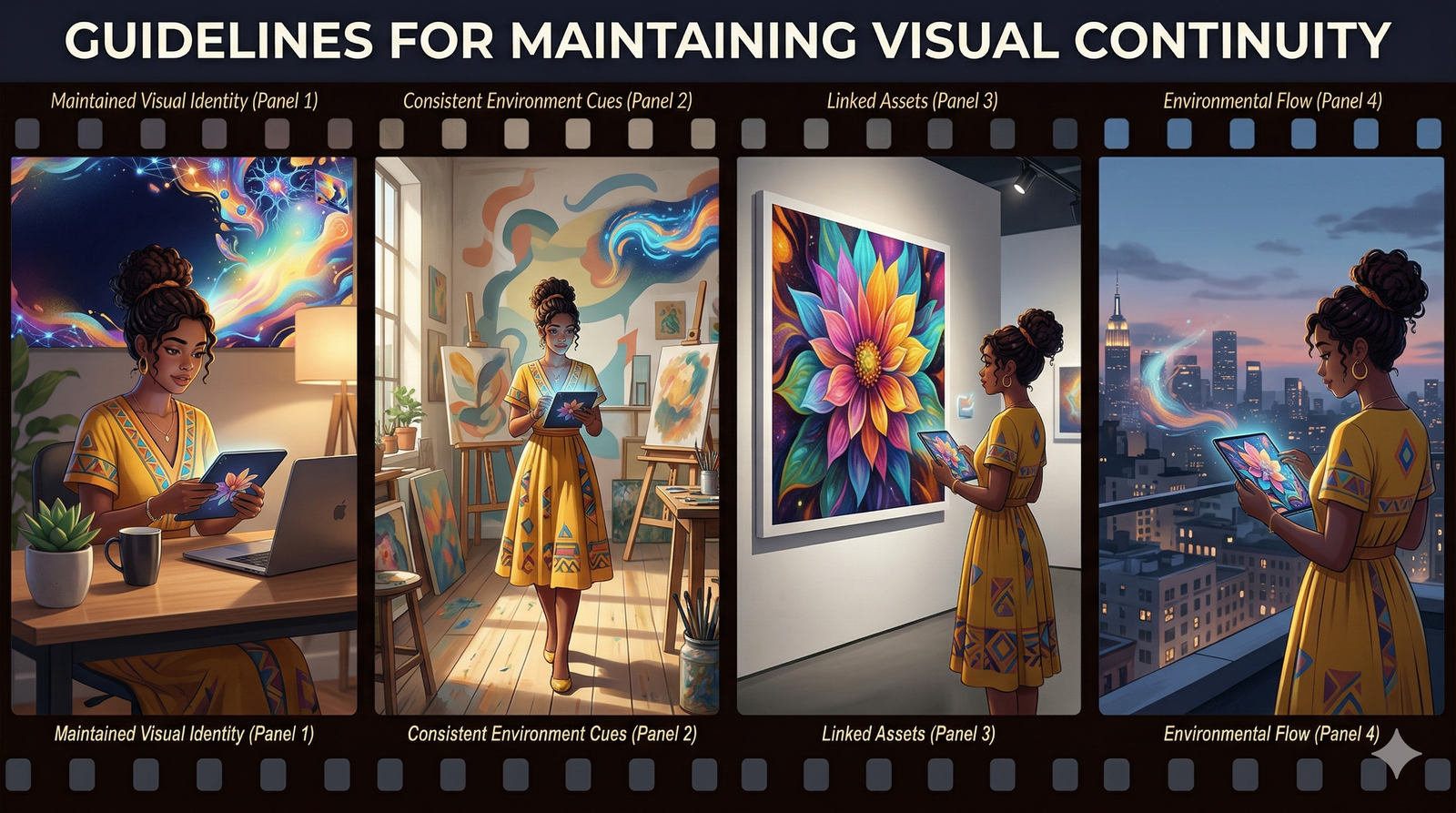
One of the biggest challenges in presentation design is "Visual Drift"—where images on Slide 1 look completely different from Slide 10. Gemini solves this through Style Persistence.
The Style String: Once you find a style you like, identify the core keywords (e.g., "3D Isometric, pastel colors, soft matte texture").
Universal Application: Copy and paste this string at the end of every prompt for that specific presentation.
Variations, Not Departures: Instead of changing the style for a new topic, change only the subject while keeping the style string identical.
4. Advanced: "Help Me Visualize" for Abstract Concepts
Sometimes, you need to represent an idea that has no physical form (e.g., "Synergy," "Cloud Security," or "Inflation").
Metaphorical Prompting: Ask Gemini for a metaphor.
Prompt: "Generate an abstract 3D render of interconnected glowing gears made of light to represent 'Organizational Synergy', dark background, high contrast."
Negative Space Design: When generating images that will have text placed over them, add "with copy space on the right side" or "minimalist background" to your prompt. This ensures your content remains readable.
5. Troubleshooting and Refining Results
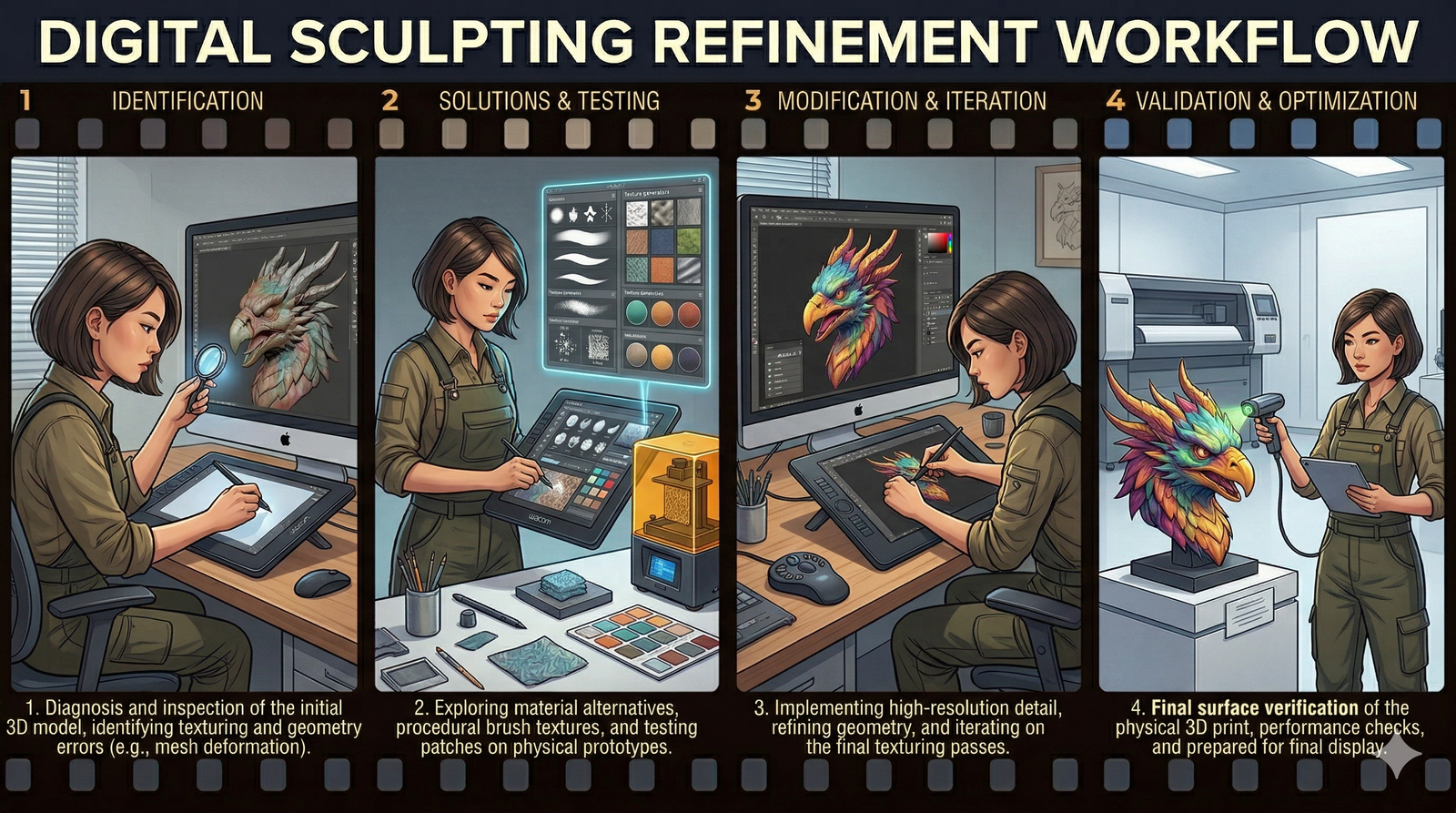
If Gemini provides an image that is "almost" right, use these three techniques to fix it:
Iterative Refinement: Don't start over. Click the image and use the "Refine" option to say, "Same image, but make the lighting warmer."
Subject Weighting: If the background is too busy, move the subject to the beginning of the prompt: "A single red apple [subject] on a blurry, dark wooden table [background]."
Artifact Cleaning: If an image has a minor AI glitch (like a strange shadow), use the Image Edit feature to "re-generate" just that specific section of the image.
Image Generation Checklist
[ ] Did I include a specific Artistic Style (e.g., 3D Render, Vector)?
[ ] Have I described the Lighting and Mood?
[ ] Is there enough Negative Space for my slide text?
[ ] Is the image Consistent with the previous five slides?
[ ] Did I check for "AI artifacts" in the final output?
.svg)