Module 2: Refining Prompts with Gemini in Google drive

In this module, we move beyond simple file searches. You will learn how to use Gemini in Google Drive as a sophisticated research assistant. The key to mastering Drive integration is learning how to refine your prompts to filter through hundreds of files, synthesize data from multiple formats, and extract precise insights.
1. The Power of the Drive Side Panel
Unlike Gemini in a specific Doc, Gemini in the Drive interface has a "bird's-eye view" of your entire ecosystem.
Global Context: Gemini can look across PDFs, Spreadsheets, Presentations, and Folders simultaneously.
The Interface: Access Gemini via the side panel icon on the main Drive home screen.
Metadata Awareness: Gemini understands not just the content inside the files, but also who shared them, when they were last edited, and where they are located.
2. Strategies for Refining Search & Synthesis
Refining a prompt in Drive is about moving from "Find this" to "Analyze this across these specific parameters."
A. Using the "@" Symbol for Precision
Broad prompts like "Summarise my projects" often return too much noise. Refine by targeting specific files.
Initial Prompt: "What is the status of Project X?"
Refined Prompt: "Summarise the timeline in @Project_X_Schedule and compare it to the budget constraints in @Finance_Q1_Report."
B. Filtering by Date and Owner
If you have multiple versions of a file, refine your prompt to capture the most relevant data.
Refined Prompt: "What were the feedback points on the @Marketing_Plan document shared by 'Sarah' in the last 30 days?"
C. Cross-Format Synthesis
Gemini can bridge the gap between a written proposal and a data sheet.
Refined Prompt: "Based on the client requirements in @Client_Meeting_Notes.pdf, identify which rows in @Inventory_Stock.xlsx are currently unavailable for fulfillment."
3.The "Chain of Thought" Prompting Technique
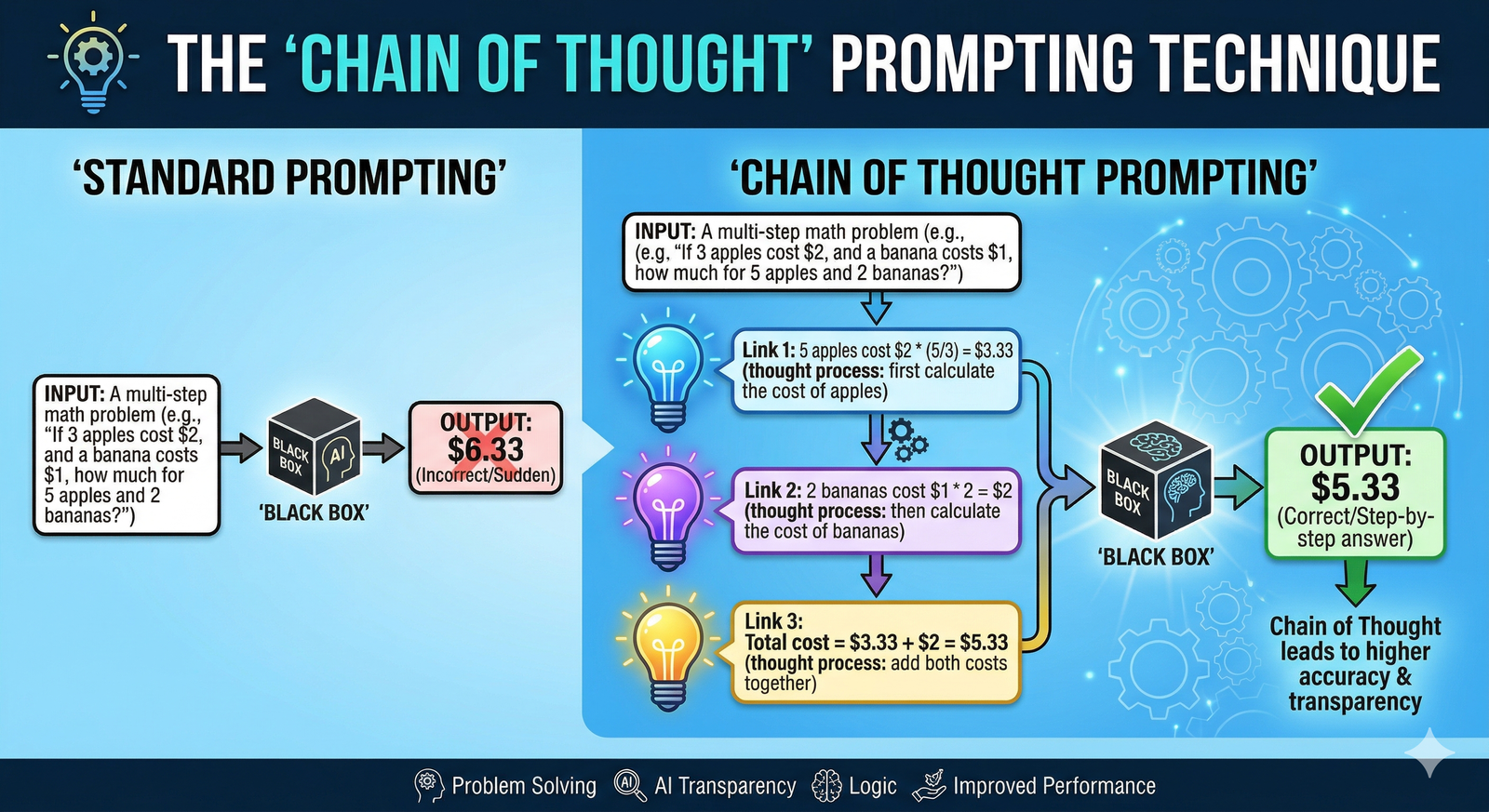
For complex research tasks in Drive, refine your prompt by breaking the logic into steps. This prevents the AI from missing details in large folders.
Example Framework:
Identify: "Search my 'Contracts' folder for all files related to 'Vendor A'."
Extract: "List the expiration dates and the total contract value for each."
Format: "Present this as a table with columns for 'File Name', 'Expiry', and 'Value'."
4.Advanced Comparative Analysis

One of the most valuable skills is using Gemini to find discrepancies or trends across multiple files.
Gap Analysis: "Compare @Proposal_V1 and @Proposal_Final. List exactly what was removed from the 'Security' section."
Trend Identification: "Look through the last four @Monthly_Performance_Reports. What is the recurring reason given for project delays?"
Formatting for Output: "Based on all documents in the 'Hiring 2026' folder, draft a 3-paragraph summary of our current diversity initiatives."
5. Troubleshooting Common "Broad" Prompts

If Gemini gives a vague answer, use these refinement "Quick-Fixes":
Drive Refinement Checklist
[ ] Did I use the @ symbol to point to specific files?
[ ] Did I specify the File Type (PDF, Sheet, Slide)?
[ ] Did I include a Timeframe (e.g., "in the last week")?
[ ] Did I ask for the output in a specific Structure (Table, List, Summary)?
.svg)