Module 5: Automated Content Generation in Gmail

This module explores the advanced capabilities of Gemini to act as a creative engine directly within your inbox. Beyond simple replies, Gemini can generate structured content—such as course outlines, project proposals, or detailed instructions—based on the context of your previous emails or a simple descriptive prompt.
1. High-Fidelity Drafting with "Help me write"
The "Help me write" feature is not limited to short messages. It can generate comprehensive, multi-paragraph documents that are formatted and ready for professional review.
Prompting for Complexity: To generate detailed content, move away from simple commands.
Basic: "Write a course outline."
Advanced: "Draft a detailed 4-week course outline for 'Introduction to Cybersecurity.' Include weekly learning objectives, a list of required reading, and a description for a final hands-on lab activity. Maintain an educational and encouraging tone."
Contextual Injection: You can ask Gemini to pull data from a specific email thread to build the content.
Prompt: "Based on the project requirements sent by the client in this thread, draft a 5-step implementation plan for the new software rollout."
2. Transforming Raw Data into Structured Content
Gmail often becomes a repository for disorganized notes. Gemini can synthesize these into polished artifacts.
The "Notes-to-Proposal" Workflow:
Copy a list of bulleted ideas or raw data points into a new email.
Highlight the text and select "Help me write."
Choose "" or "Elaborate."
The Result: Gemini identifies the logical flow and transforms the "brain dump" into a structured proposal with an introduction, body, and conclusion.
3. Creating Instructional Content for Teams

If you are a manager or educator, you can use Gemini to generate "How-To" guides or on-boarding material directly in an email.
Procedural Generation:
Prompt: "Generate a step-by-step guide for new employees on how to set up their corporate VPN and access the shared drive. Include troubleshooting tips for common connection errors."
Visual Formatting: Gemini understands Markdown and basic structure. It will automatically use bold headers, bullet points, and numbered lists to ensure the instructions are easy to follow at a glance.
4. Advanced: The "Drafting Persona" Technique
To ensure the generated content meets specific professional standards, you can assign Gemini a "Persona" within your prompt.
The Subject Matter Expert (SME): "Write this course module as a Senior Data Scientist. Focus on technical accuracy and industry-standard best practices."
The Executive Summary: "Write this update as a Chief Operations Officer. Focus on high-level ROI, timelines, and resource allocation, avoiding overly technical jargon."
The Supportive Mentor: "Draft the feedback for this student as a supportive mentor. Highlight their strengths first, then provide three actionable steps for improvement."
5. Managing Draft Versions
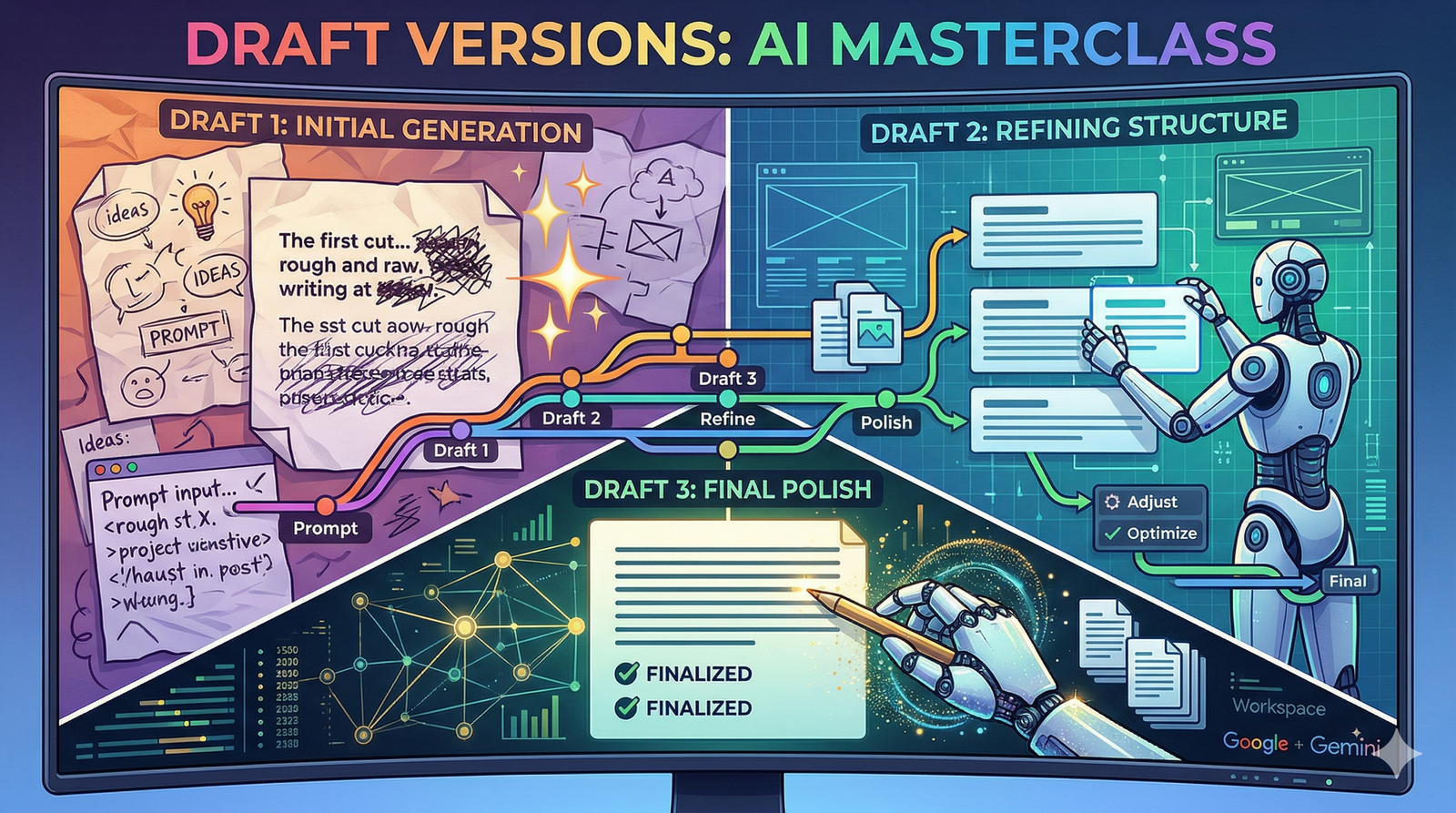
When generating complex content, the first version may need adjustment. Gemini allows you to "branch" your drafts.
Side-by-Side Comparison: Generate a draft, then use the "Refine" tool to create a "Shorten" version. You can toggle between them to see which structure fits your needs better.
Save as Template: Once Gemini generates a perfect piece of content (like a weekly newsletter or a course module), you can save that email as a "Gmail Template" to reuse the structure in the future.
Content Generation Checklist
[ ] Did I provide enough Specific Details (names, dates, objectives) in the prompt?
[ ] Have I used a Persona to set the correct professional tone?
[ ] Is the content structured with headers and bullets for readability?
[ ] Did I use the "Elaborate" tool to add depth to any sections that felt too brief?
[ ] Have I checked the draft against the Original Context (e.g., the client's email) for accuracy?
.svg)