Module 2: Mastering AI-Assisted Email Drafting
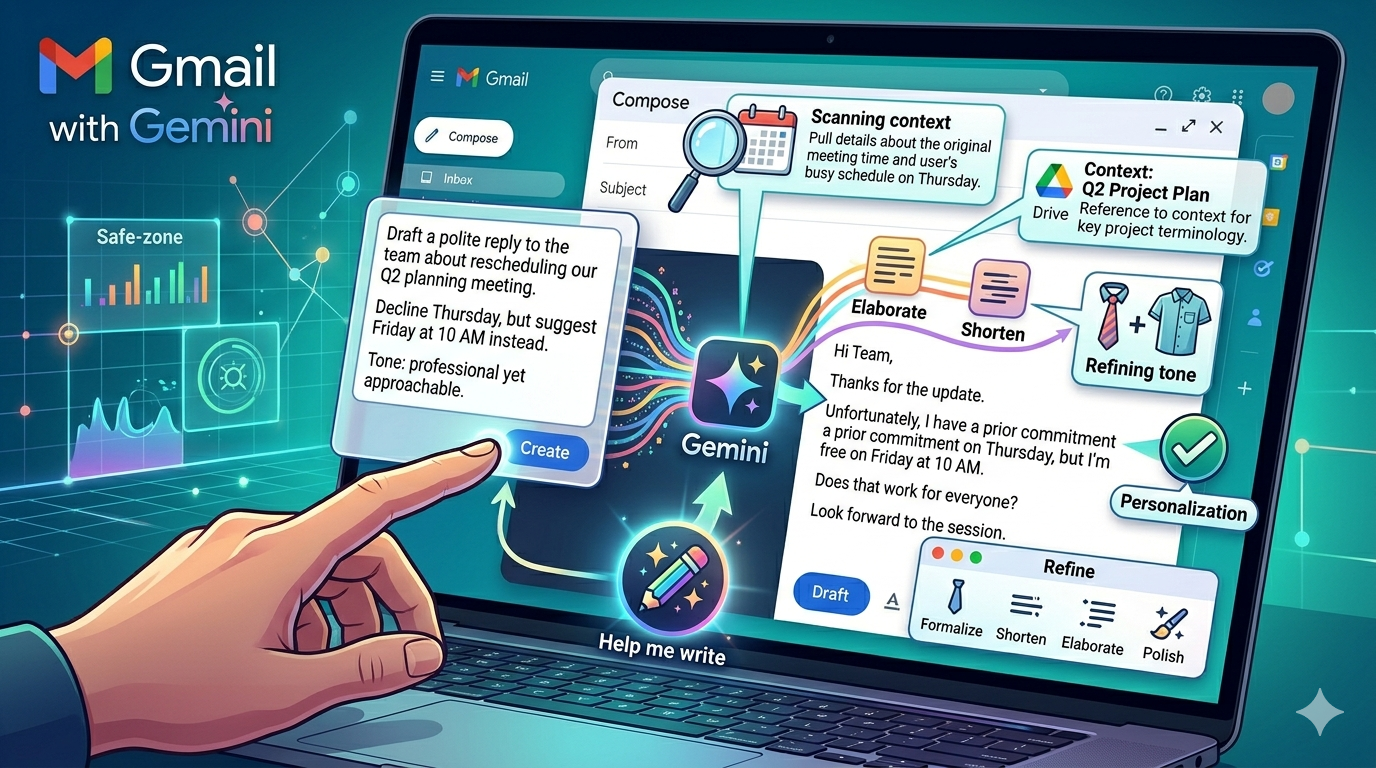
This module explores the mechanics of using Gemini’s "Help me write" feature in Gmail. Rather than viewing AI as a replacement for your voice, you will learn to use it as a "drafting partner" that handles the structure, tone, and professional polish of your correspondence, allowing you to focus on strategy and high-level decision-making.
1. The "Help Me Write" Workflow
Gemini in Gmail is designed to act as your co-author. It pulls context from your current inbox and existing threads to draft responses that feel intuitive and relevant.
Activation: Locate the "Help me write" (sparkle icon) within the Gmail compose window.
Prompting for Intent: The key to a great draft is a precise prompt.
Weak Prompt: "Write a reply to the client."
Strong Prompt: "Draft a professional response to Sarah regarding the Q3 project update. Acknowledge the delay due to supply chain issues, propose a new deadline of April 15th, and offer a meeting to discuss the revised timeline."
Iterative Refinement: Don't settle for the first version. Use the "Refine" menu to:
Formalize: Turn a casual note into a business-standard email.
Elaborate: Add more context or supporting arguments.
Shorten: Condense the message for high-level stakeholders.
Polish: Fix grammar, flow, and professional phrasing.
2. Crafting Professional Email Templates
You can create a "Drafting Library" of prompts that ensure your communication remains consistent in tone and quality across your organization.
A. The "Status Update" Template
"Draft an update email to the team regarding [Project Name]. Highlight these three successes: [Success 1, 2, 3]. Note one challenge: [Challenge]. Conclude with a request for a quick sync on Friday."
B. The "Difficult Feedback" Template
"Draft a supportive but clear email to a colleague regarding [Issue]. Acknowledge their effort, state the issue objectively, explain the business impact, and suggest a way forward to improve the output."
C. The "Meeting Follow-Up" Template
"Write a follow-up email after our meeting. List the following agreed-upon action items: [List]. Assign them to [Name] with a due date of [Date]. Maintain a collaborative and encouraging tone."
3. Advanced Contextual Awareness
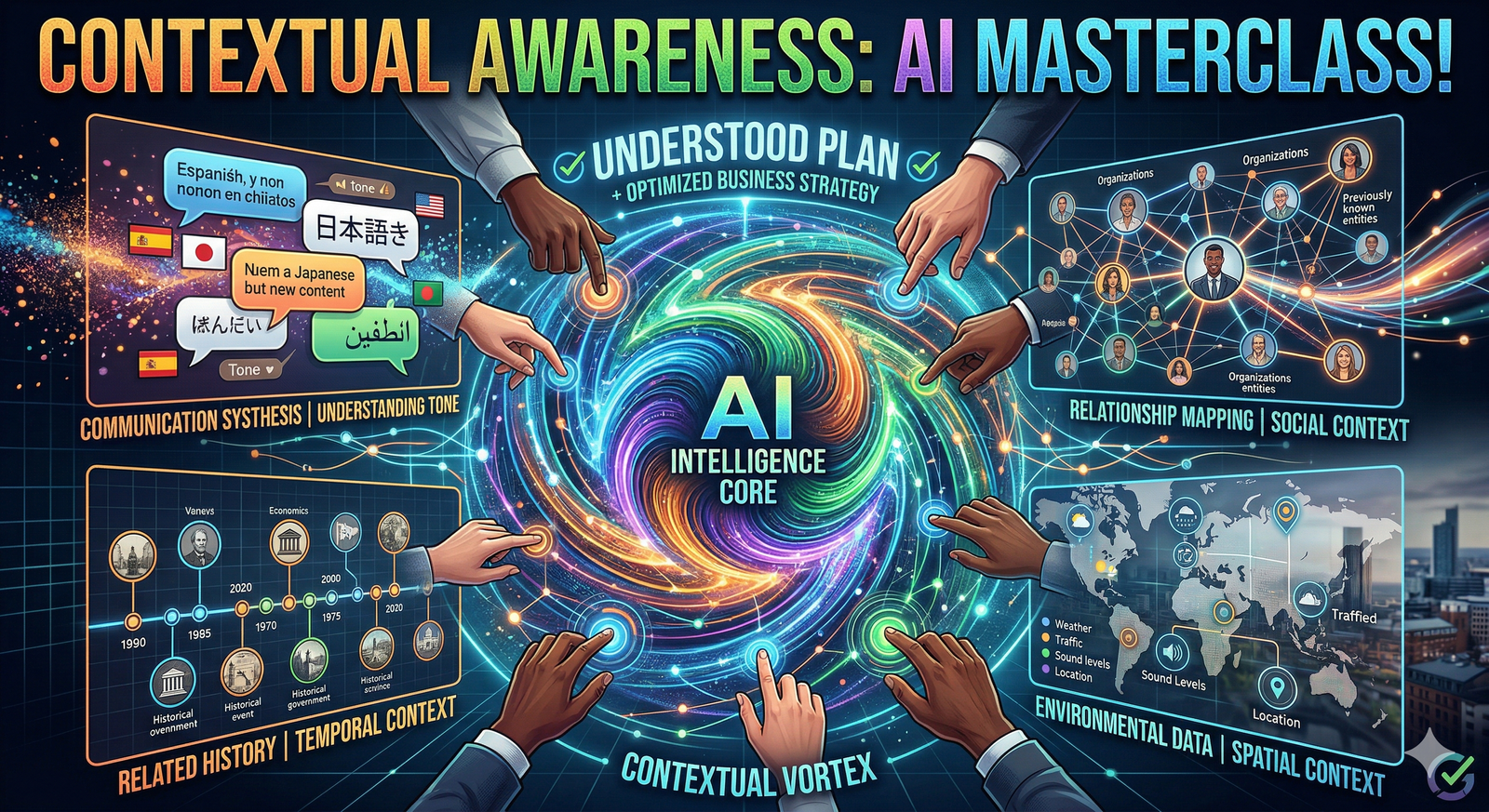
The power of Gemini lies in its ability to read between the lines. When you reply to an existing email thread, Gemini uses that conversation as its foundation.
Thread-Based Drafting: Gemini automatically knows who you are replying to and the history of the discussion. You don't need to reiterate facts that were already established in the thread.
Tone Matching: If you consistently write in a specific style, Gemini will adapt its suggestions to mirror your cadence and professional vocabulary.
Information Extraction: If you ask Gemini to "Draft a reply confirming the meeting time," it will automatically scan the previous messages to see what time was discussed, saving you from manual verification.
4. Best Practices for High-Impact Communication
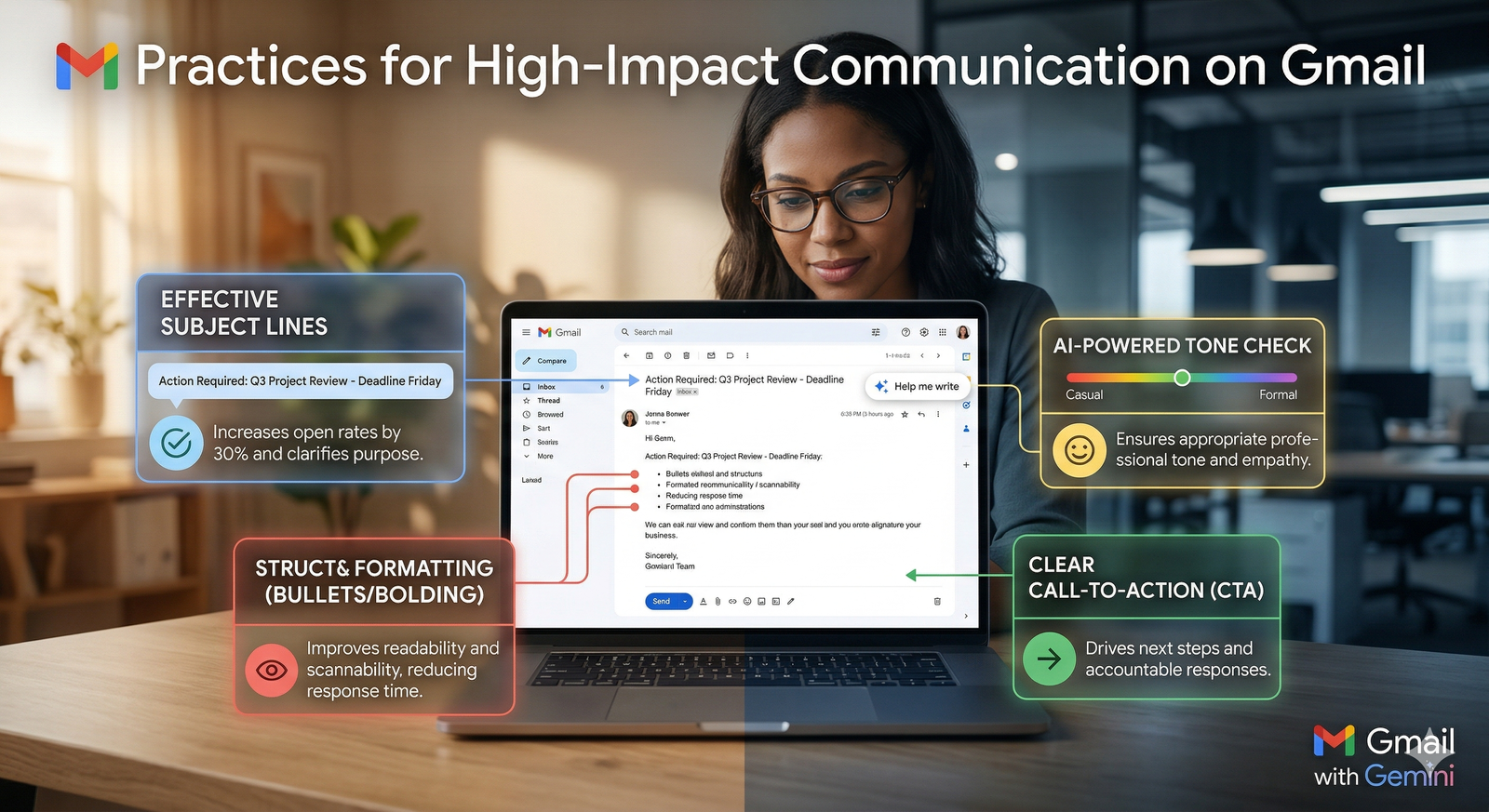
State the "Why": Always include the purpose of the email in your prompt. Is it to inform, persuade, apologize, or request?
Specify the Audience: Telling Gemini who the recipient is helps it adjust the level of technical detail and formality (e.g., "Draft this for a CEO" vs. "Draft this for a junior developer").
Review for "Human Touch": AI can be highly effective, but it lacks your personal nuance. Always do a final read-through to ensure the final output aligns with your relationship with the recipient.
Email Drafting Checklist
[ ] Did I clearly define the purpose and tone of the email?
[ ] Have I included all necessary key data points (dates, names, metrics) in the prompt?
[ ] Did I use the "Refine" tool to adjust the length or tone after the first draft?
[ ] Have I reviewed the final draft for personal nuance before hitting "Send"?
.svg)