Module 6: Collaborative Workflows with Gemini in Google Meet
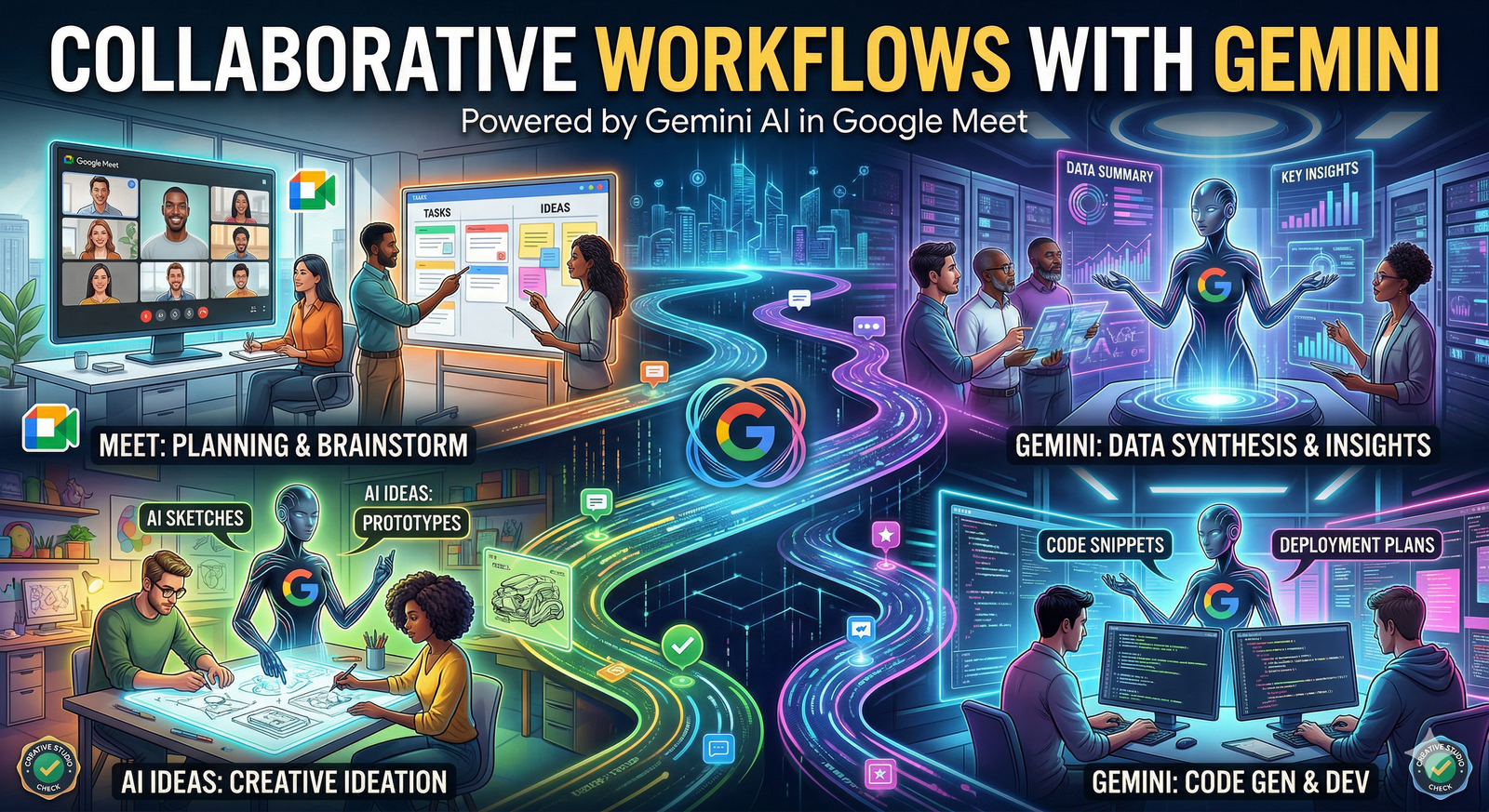
This module explores how to move beyond basic AI assistance and enter a true collaborative partnership with Gemini during live video calls. Collaboration in Meet means using AI not just to record what happened, but to actively influence the creative and decision-making process in real-time.
1. Real-Time Resource Retrieval
During a live collaboration, the biggest momentum killer is stopping to "find that one file." Gemini eliminates this by acting as a high-speed librarian.
The "@" File Bridge: Use the Gemini side panel to pull data from your Drive into the live conversation.
Action: While discussing a project, type @ followed by the file name in the side panel to answer questions like, "What were the specific brand colors we used in the last campaign?"
Instant Fact-Checking: If a team member makes a claim about past performance, ask Gemini to verify: "Check the @Q3_Sales_Sheet and confirm if we met the 15% growth target."
Cross-App Connectivity: Gemini can bridge your Gmail and Meet. Ask: "What was the feedback Sarah sent in her last email regarding this specific slide deck?"
2. Collaborative Ideation and Brainstorming
Gemini can serve as a "neutral" participant in brainstorming sessions, helping to break deadlocks and spark new directions.
Expanding on Ideas: When the team hits a creative wall, feed the last few minutes of the transcript into the side panel.
Prompt: "Based on our discussion about the 'User Experience,' suggest three radical features we haven't mentioned yet."
Clustering and Categorization: As ideas are shared verbally, ask Gemini to organize them.
Prompt: "Group the ideas shared in the chat so far into three categories: 'High Impact,' 'Medium Impact,' and 'Future Roadmap'."
The "What If" Engine: Use Gemini to simulate outcomes of collaborative decisions.
Prompt: "If we choose to delay the launch by two weeks as discussed, what are the potential risks to our Q4 marketing budget?"
3. Synchronised Document Co-Creation
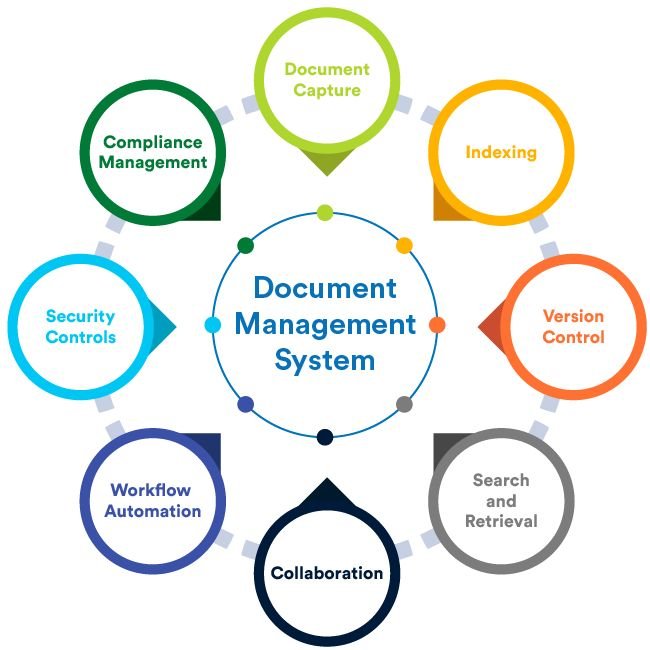
True collaboration often results in a tangible artefact. Gemini allows the team to "write" the document while they are still talking about it.
Live Drafting from Conversation: Instead of taking notes and writing the proposal later, do it during the call.
Strategy: Ask Gemini in the side panel to "Draft a 4-point summary of the agreement we just reached and format it for a Google Doc."
Setting Actionable Milestones:
Action: Toward the end of the call, say: "Gemini, based on our conversation, create a table of action items, assign them to the speakers who volunteered, and suggest realistic deadlines for next Friday."
Instant Visual Support: If the team needs a visual aid, use the "Generate a Background" or "Help Me Visualize" features to create an image that represents the concept being discussed.
4. Facilitating Multi-Language Collaboration
Collaboration is often hampered by language barriers. Gemini acts as a bridge to ensure every voice is heard and understood perfectly.
Translated Captions: Enable live translation so that a global team can collaborate in real-time, with each member speaking their native language while others read translated captions.
Cultural Nuance Check: If you are collaborating with a team in a different region, ask Gemini privately: "Are there any cultural nuances or specific business etiquettes I should keep in mind for this negotiation in Tokyo?"
Multi-Lingual Summary Generation: After the meeting, Gemini can generate the meeting notes in multiple languages simultaneously, ensuring all stakeholders are aligned.
5. Managing the "Post-Collaboration" Momentum
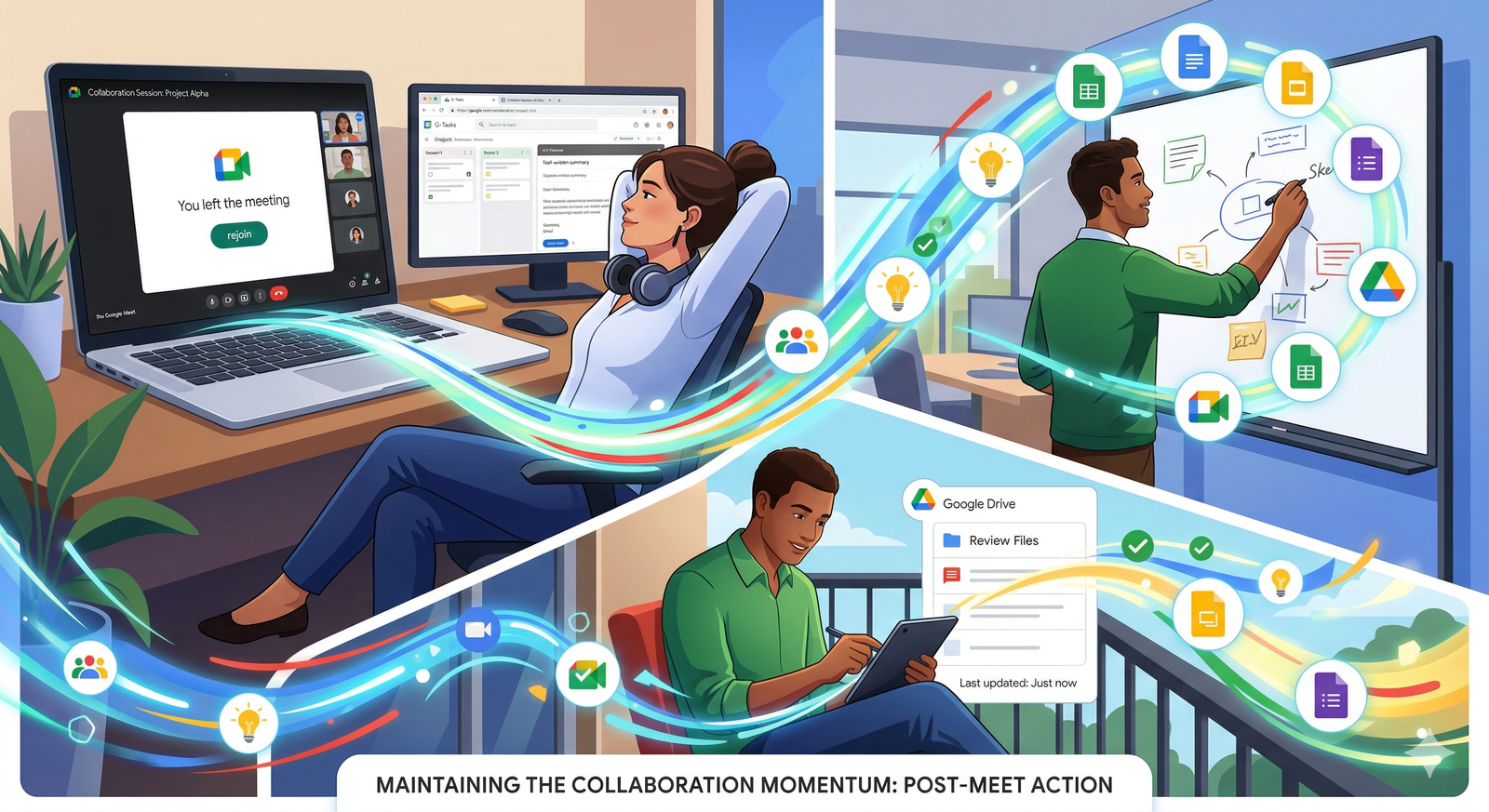
The most critical part of collaboration is what happens after the "Leave Call" button is pressed.
The "Meeting to Mission" Pipeline: Use the automated notes to immediately trigger workflows in other apps.
Drive Search-ability: Because the collaboration was captured by Gemini, the transcript and notes are now part of your searchable "Team Memory." You can find them later in Drive by searching for keywords used during the live call.
Continuity Prompts: In your next meeting, ask Gemini: "Based on the collaboration notes from @Last_Tuesday_Sync, what were the three outstanding issues we still need to resolve today?"
Collaboration Checklist
[ ] Is the Gemini Side Panel open and ready for file retrieval?
[ ] Have I used the "@" symbol to link the meeting to existing Drive data?
[ ] Am I using Gemini to categorize and organize ideas as they are shared?
[ ] Have I confirmed the Action Items with the team before ending the session?
.svg)