Module 2: Creating Custom Backgrounds with Gemini in Google Meet
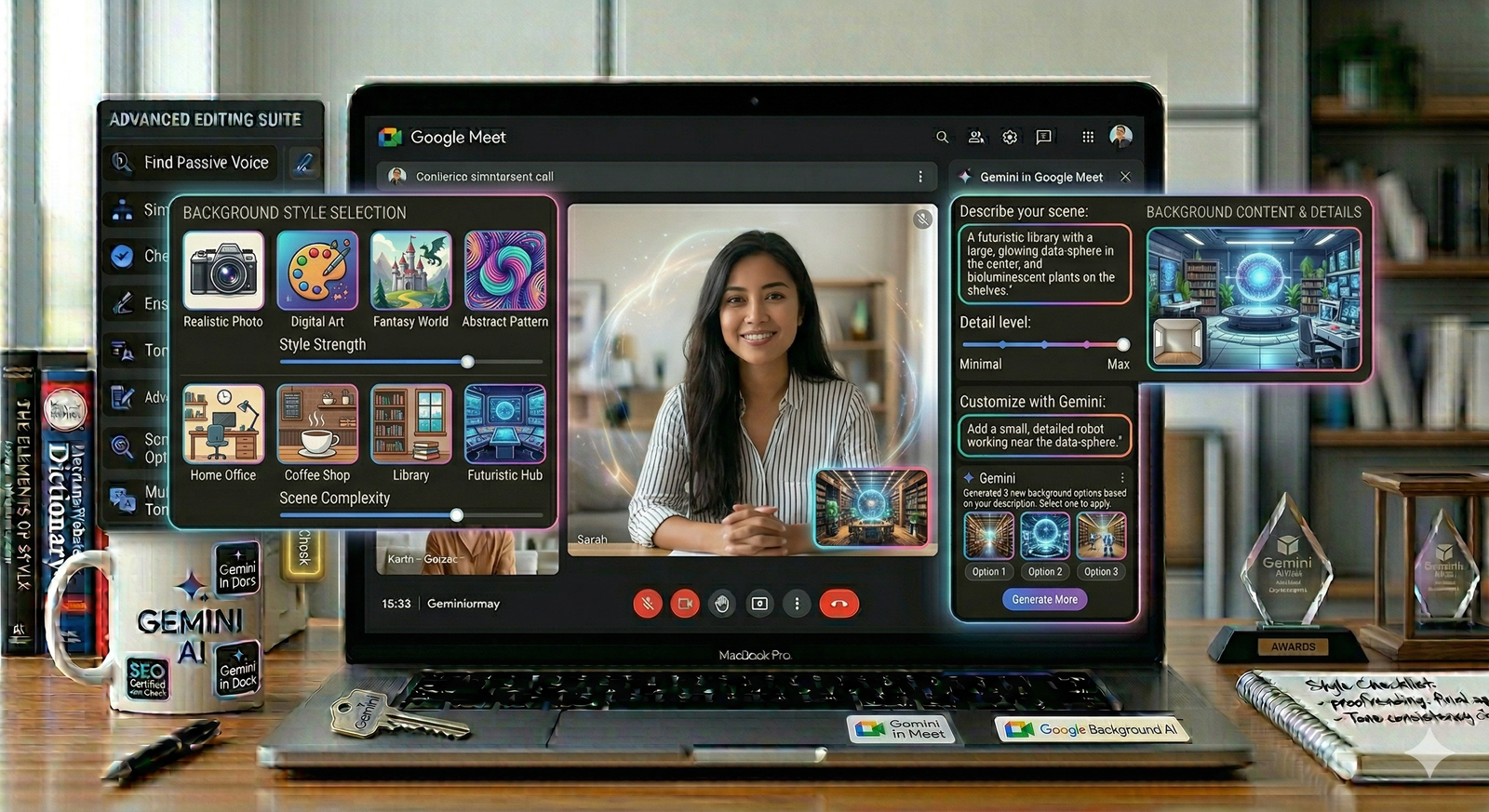
In this module, we move beyond standard blur effects or static background images. With the power of Gemini, Google Meet allows you to generate high-fidelity, custom backgrounds tailored to your specific meeting context, professional brand, or creative mood. This capability turns a simple video call into a personalized, immersive environment.
1. The Power of Generative Backgrounds
Why use a generic stock photo when you can create a background that tells a story or represents your brand?
Contextual Relevance: Generate backgrounds that match the theme of your meeting (e.g., a high-tech lab for a science presentation, or a calming minimalist office for a one-on-one coaching session).
Brand Consistency: Create professional backgrounds that incorporate your company colors or abstract representations of your brand identity.
Instant Mood Setting: Create environments that foster specific types of collaboration, such as a "Zen Garden" for brainstorming or a "Dynamic Urban Workspace" for team syncs.
2. How to Generate Your Custom Background
The generation process is designed to be seamless, keeping you in the flow of your meeting preparation.
Access Effects: Before or during a meeting, click the More options (three dots) icon at the bottom of your screen.
Apply Visual Effects: Select "Apply visual effects."
The "Generate a Background" Tool: Look for the "Generate a background" option. This opens the AI-powered generation interface.
Prompting: You will see a text box where you can describe the background you want.
Example: "A modern, bright office with plants, soft sunlight, and a blurred cityscape in the background."
3. Mastering Your Background Prompt

The quality of your generated background depends on how well you describe the visual environment. Use this framework to refine your prompts:
Subject/Setting: Start with the main environment. (e.g., "A cozy coffee shop corner")
Lighting/Atmosphere: Describe the mood. (e.g., "Warm afternoon light, soft focus")
Style: Define the artistic style. (e.g., "Photorealistic," "Minimalist illustration," or "Abstract oil painting")
Color Palette: Mention specific colors if you want to align with your brand. (e.g., "Deep blues and soft gold accents")
Prompting Examples
For a Professional Meeting: "A sleek, professional home office, wood textures, soft natural light, minimalist decor, photorealistic style."
For a Creative Brainstorm: "An abstract digital art space, vibrant splashes of purple and orange, clean lines, professional and inspiring atmosphere."
For a Fun/Team-Building Meeting: "A futuristic space station interior with a view of a neon-colored planet outside the window, high-definition, cinematic style."
4. Tips for High-Quality Results
Avoid Clutter: The best backgrounds for video calls are generally clean. If you prompt for "too much detail," the background might distract viewers from you.
Aspect Ratio: Keep in mind that your background will be cropped to fit the 16:9 aspect ratio of your video feed.
Refinement: If the first result isn't quite right, you can often "regenerate" the prompt with slight variations—like adding "blurred" or "out of focus" to ensure you remain the center of attention.
5. Best Practices & Professional Guidelines
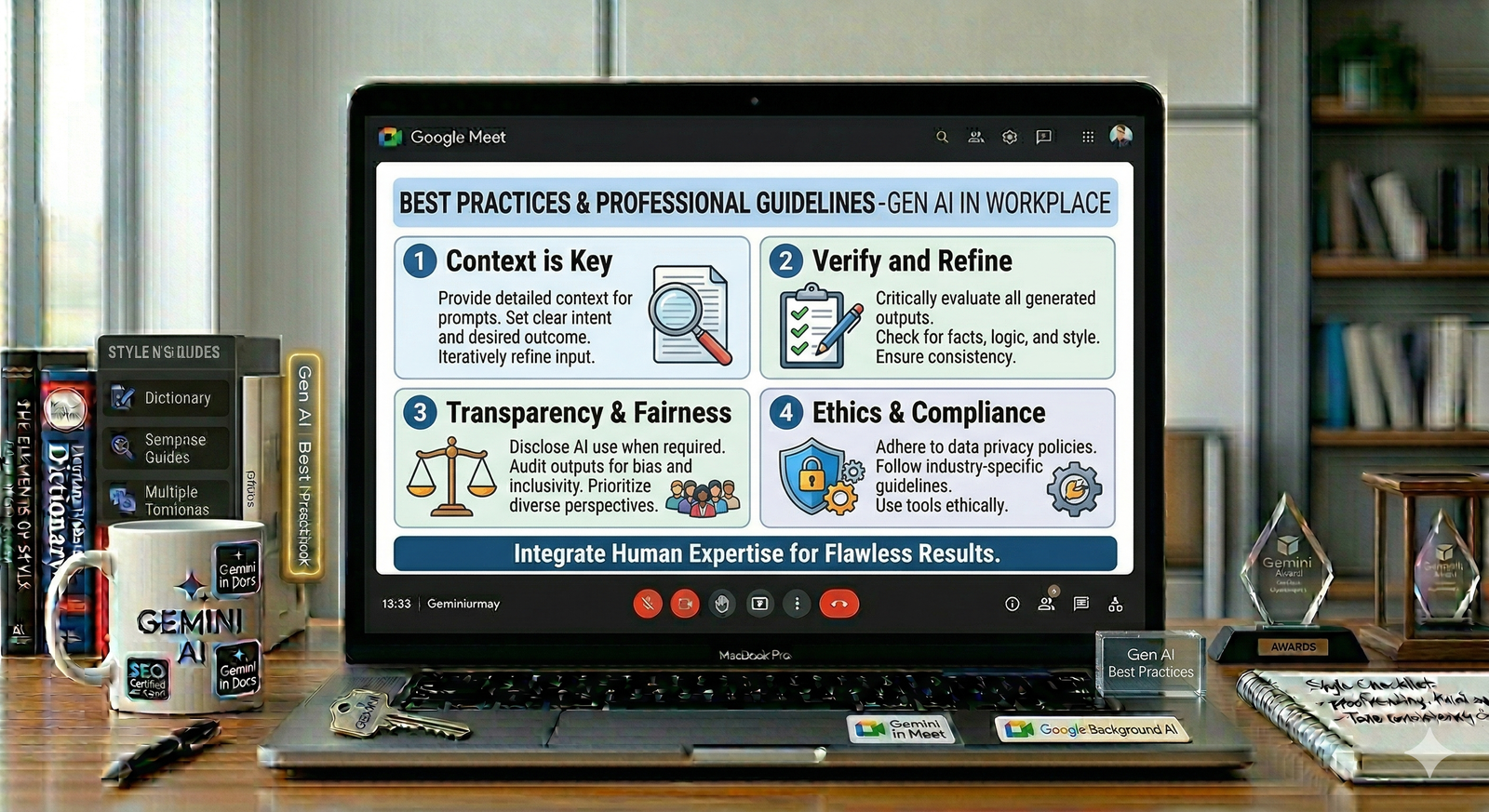
Readability: Ensure that your generated background provides enough contrast so that you (the speaker) stand out clearly. If your background is too dark and you are wearing dark clothing, you might blend in.
Ethics & Appropriateness: Ensure generated backgrounds are professional and respectful of your meeting participants. Always test your generated background in a "Green Room" preview before the call officially begins.
Staying Consistent: If you find a background you love, note the prompt you used so you can generate it again for future meetings!
Background Generation Checklist
[ ] Does the background align with the professional tone of the meeting?
[ ] Is the lighting in the generated background compatible with my actual room lighting?
[ ] Am I clearly visible against the generated background?
[ ] Does the background reflect my personal or company brand effectively?
.svg)