Module 4: Automating Meeting Documentation with "Take Notes for Me"

This module covers the primary AI-driven documentation feature in Google Meet: "Take notes for me." This feature fundamentally changes how you participate in meetings by shifting your focus from transcribing to contributing.
1. Understanding "Take Notes for Me"
"Take notes for me" is an intelligent, always-on assistant that joins your meeting to capture the substance of your conversation. It doesn't just record audio; it interprets the meeting flow to generate a structured, professional document.
Automated Transcription: As the meeting progresses, Gemini listens to the conversation in real-time, parsing speakers and converting speech to text.
Smart Synthesis: Instead of a raw, messy transcript, Gemini identifies the "meat" of the meeting—the decisions, agreements, and next steps—and organizes them into a clean, human-readable format.
Privacy by Design: Participants are notified when note-taking is active, ensuring transparency. In enterprise environments, these notes are handled within your secure Google Workspace perimeter.
2. The Post-Meeting "Notes Doc"
Once the meeting concludes, Gemini automatically saves a comprehensive summary document to the host’s Google Drive and attaches it to the original Calendar event. The document typically contains:
Executive Summary: A high-level overview explaining why the meeting happened and what was accomplished.
Key Topics: A bulleted list detailing the primary themes discussed, maintaining the context of the conversation.
Action Items: The most important section. Gemini identifies tasks, labels the "owner" (if mentioned), and lists the items that require follow-up.
Speaker-Attributed Highlights: While it doesn't give a word-for-word transcript of every "um" and "ah," it captures the essence of who said what regarding important decisions.
3. How to Activate and Manage Notes
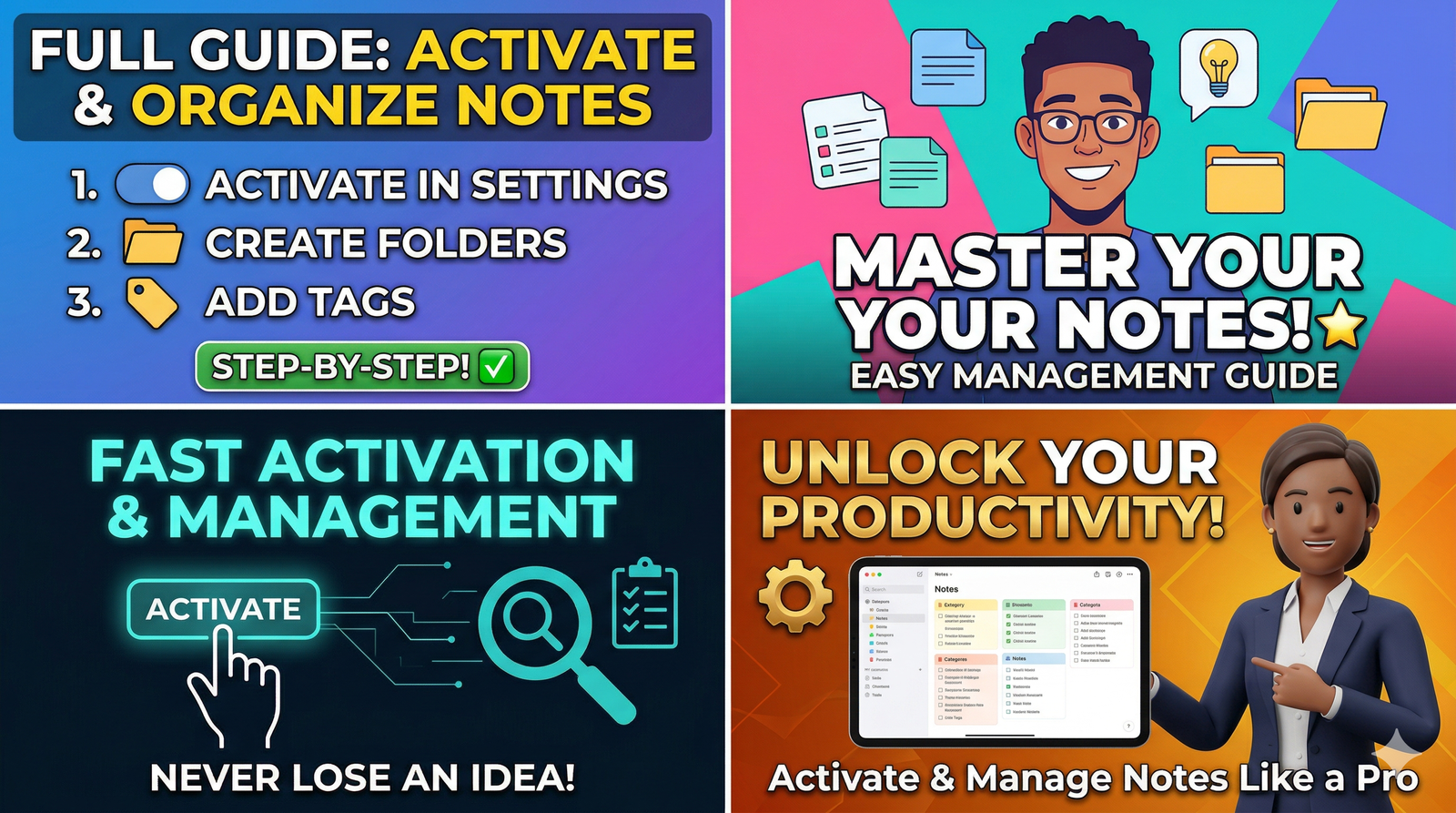
During the Meeting: Simply click the "Take notes for me" button (found in the Gemini/sparkle icon menu in the bottom-right of Meet). You will see a confirmation that notes are being taken.
Stopping/Pausing: You can stop the note-taking at any time if a sensitive or confidential portion of the meeting occurs.
Post-Meeting Access: Once the meeting ends, the notes are finalized and saved. You can find them in the meeting's Calendar invite or in your Drive's "Meet Recordings" folder.
4. Advanced "Live" Interaction
The notes aren't just for later—you can interact with them during the call using the Side Panel.
Ask for Clarification: If you were distracted or joined late, you can open the side panel and ask, "What was the consensus on the Q4 budget?" or "What did we decide regarding the new hire?"
Real-time Synthesis: Because Gemini is analyzing the transcript live, you can ask it to synthesize what has been said so far to ensure everyone is aligned before moving to the next agenda item.
5. Best Practices for High-Quality Notes
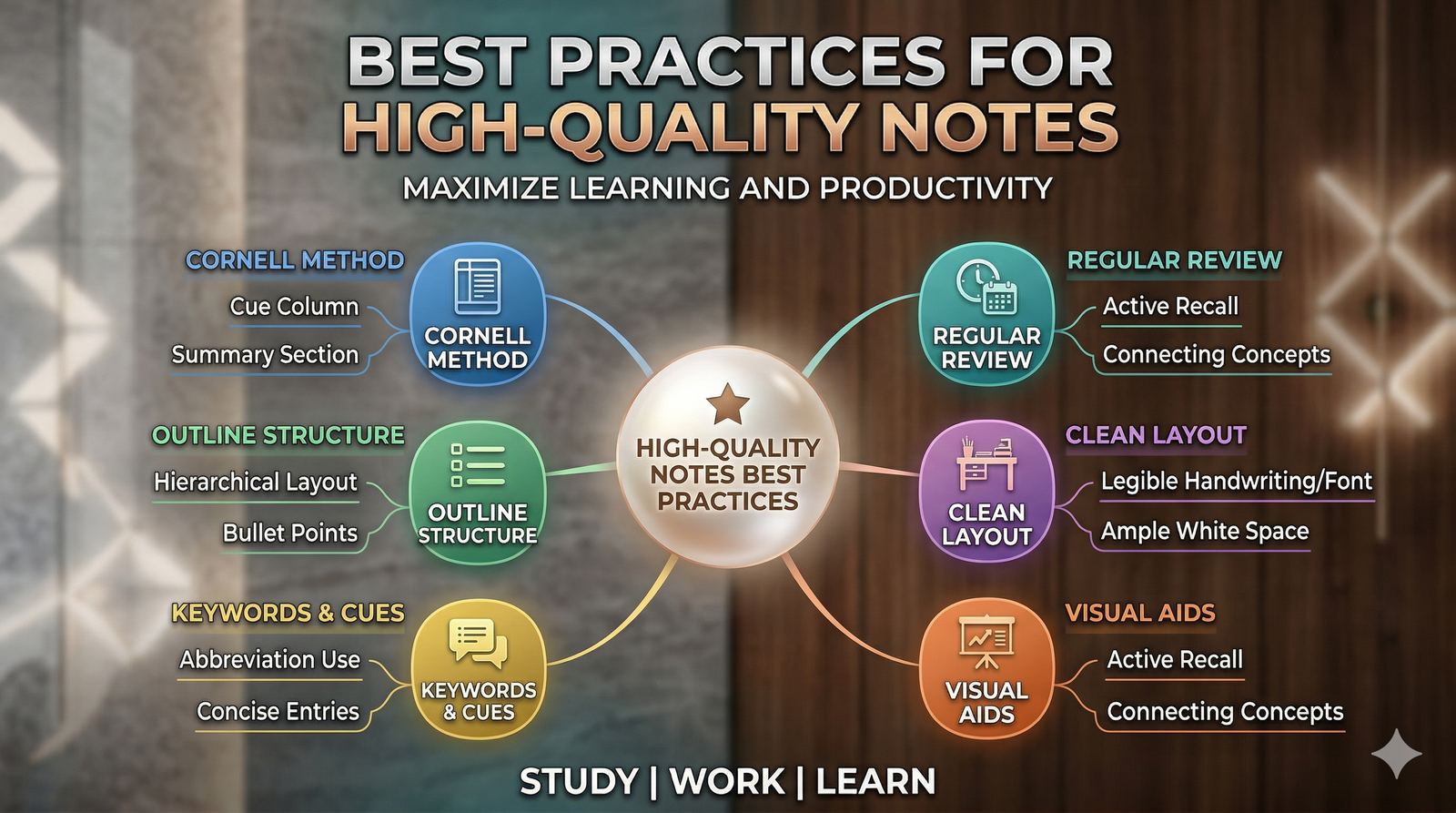
To get the most accurate summary, help the AI "understand" your meeting:
State the Purpose: Clearly stating the meeting goal at the beginning helps Gemini categorize information better.
Identify Action Items Explicitly: When a task is decided, explicitly say: "Let's assign this action item to [Name] for completion by [Date]." This helps Gemini flag it clearly as an action item.
Summarize Before Closing: Use the last few minutes of the meeting to recap the main decisions. This "recap" acts as a summary that Gemini can easily parse and include in the final document.
Meeting Documentation Checklist
[ ] Did I activate "Take notes for me" at the start of the call?
[ ] Did I explicitly state the goals and action items during the conversation?
[ ] Have I checked the Calendar event after the meeting to ensure the Doc was attached?
[ ] Did I perform a quick review of the AI-generated Doc to ensure no context was missing
.svg)