5.1 Introduction

As it has been repeatedly emphasised during this course, the mastery of any of these practical skills takes practice. Individuals who dedicate time to regular practice will more rapidly become efficient and confident in any new area of expertise. Taking the time to develop yourself personally is one of the best things you can do for yourself both inside and outside the work environment.
With regular, ideally daily, practice and some willpower you will see yourself grow and improve which is reward in itself. The mastery of specific personal and practical skills is also frequently rewarded with higher incomes and improved job prospects.
The enhancement to your own esteem also cannot be underestimated. Knowing you have the ability to highlight an area for development, seek out information, learn a new skill and practise until you have sufficiently mastered it will improve self-confidence and esteem all areas of your life. Learning to trust your ability to identify opportunities for growth and drive your own development is priceless.
Fact
The ability to self-motivate and take initiative is number 5 in the top 10 skills employers seek in the UK (life-long learning and self-awareness are just outside the top 10 as they are also highly valued.)
Source: kent.ac.uk
5.2 Different Types of Keyboards
What would a course on typing be without delving into the importance of the keyboard you are using?
Easily overlooked, yet able to hugely impact your work, your keyboard could not only be slowing your down and reducing your productivity, but also putting your hand and wrist health at risk.
Ergonomic Keyboards
Ergonomic keyboards are designed with ergonomics in mind.
Ergonomics is “the study of people's efficiency in their working environment”
Ergonomic keyboards are often created to reduce the risk of muscle strains like RSI and similar problems that can arise with overuse or misuse of regular keyboards. This is done by forming the left and right keys at different angles to suit the comfortable use of each hand.
Some ergonomic keyboards have various raised areas, rotatable areas, and some possess vertical rows of keys, allowing the user to type at a right angle from how they would usually with their thumbs facing upwards. It is worth experimenting with different types of keyboards (and mice) to find one that suits your needs. The main benefit of ergonomic keyboards is the accommodation of more natural hand, arm and shoulder postures. When using a normal keyboard, the user's hands are bent at unnatural angles which can be uncomfortable and even damaged with prolonged use.
Split Keyboards
Split keyboards come in two varieties: fixed-split and adjustable split keyboards. Fixed split keyboards have their keys divided, usually into two main sections that make it easy for the user to type on with the natural angles of their two hands. Adjustable split keyboards are where the keyboard can be split into two separate pieces of hardware, or come as two separate pieces, which can be individually manipulated to suit the comfort and convenience of the user's hands.
Contoured Keyboards
Similar to split keyboards, contour keyboards have keys that are found in two depressions in the keyboard at shoulder width, they assist the natural movements of the hands making typing more efficient. These designs place more emphasis on the thumb operating various keys, which makes sense as the thumb is often the stronger digit on most people's hands. Because of their unusual design contoured keyboards usually take longer to learn how to use, although ultimately doing so can offer huge increases in productivity.
Activity: Physical Needs Assessment
Estimated time: 5 minutes
Taking the time to understand your own physical needs and preferences will prevent long term damage and can even make typing more fun! Reβlect on your own requirements and issues.
Do my hands ache after typing for long periods?
Do I need to type a lot (more than 3 hours per day)?
Are my hands and wrists comfortable using a standard keyboard?
Is the rest of my body physically comfortable when typing?
Do I get cramps or discomfort in my hands when writing?
Is my back posture comfortable for extended periods of sitting?
Can I experiment with different keyboards and seating (maybe visit a showroom and try some out)?
How else could my physical posture be improved (for example a standing desk)?
Most employers are very happy to help you get comfortable and prevent costly long-term injuries as in the end they are impacted with lost productivity and even medical bills.
5.3 Specialist Keyboards

In addition to keyboards which enhance comfort and ergonomics, some roles and individuals require more specialised equipment.
Medical Keyboards
Medical grade keyboards are for use in hospitals for the purpose of increasing hygiene. They reduce the risk of infections from different people sharing the keyboard. Hospitals are renowned for housing infections, so good hand hygiene is one of the best ways to prevent their spread, which is achieved by medical grade keyboards which are waterproof. Medical keyboards can easily be washed and cleaned with disinfectant, come in white so you can see if they are dirty and they are even made with ergonomic keys that can be used while typing with rubber gloves on.
Keyboards for Disabled Users
Various types of keyboards are available for users with different disabilities.
These include:
Keyguard: placed over the regular keyboard and help users to type more accurately.
Compact Keyboards: smaller in size than regular keyboards and allow for more control for those with limited movement.
Big Keys: 1 inch keys with large letters and numbers, a great help to people who are visually impaired or have cognitive disabilities.
Keyboard Stickers: help users navigate their keyboards by dividing the keys into colour coded section (there are a variety of keyboard stickers available in all manner of designs and images) these can support visually impaired users specifically with large print and braille keys.
Onscreen Keyboards: available on windows, and ubiquitously used on smartphones and tablets, onscreen keyboards are great for people who struggle with physical ones, and need only be controlled with a mouse or a switch (a device that simply has two functions: on or off, and can be used for people with severe disabilities).
5.4 Typing Technology/Equipment to Assist Typing

There are many pieces of office equipment which practically and ergonomically enhance your typing experience. There are many ways in which we waste time which can be removed; this can dramatically improve your typing speed. If you can type 100 words per minute, but it takes you 20 minutes to physically locate the document you need on a messy desk, then the total typing time, and efficiency, is hugely impacted.
Typing Stand
For clerical or administrative tasks, and a whole host of other purposes, typing stands can make life so much easier. They allow you to multitask, having documents close to your computer for easy reference and organisation of your documents without the need to crane your neck and look down at your desk.
There are a wide range of typing stands available with a variety of accoutrements, such as different holders, highlight guides and mounted lamps for working late at night. Typing stands are ideal for transcribing notes. Working with them increases efficiency and reduces the strain on your neck.
Book Holders
The same as typing stands but able to hold denser documents like books, manuscripts, planners and diaries. They come in a range of sizes and some offer clips to keep your books securely in place.
Keyboard Covers
For the clumsy/messy typist, Keyboard covers are designed to be placed over your keyboard for protection against spills, dust, or other mishaps, and allow the user to type on top of the protective layer. Perfect if you're prone to spilling things on your keyboard.
Filing and Storage
There is a wide range of equipment to help you store, stack, file and more effectively retrieve information you need to have access to. Most people don't take the time to logically plan out their desk. What do you need most often? What do you need on display all the time? What do you seem to lose? Design your workstation to suit your needs and preferences, which can include some decorative items or affirmations to bring joy into your day, plants are excellent for this.
Transcription Software
The wonders of technology: first we had text to speech software, now we have speech to text. Used by businesses, often for legal or medical vocations, this software literally writes down in a word document words spoken into a microphone or from a recording. Transcribing software is an incredibly useful tool for recording spoken words, and the technology behind them is improving all the time, and their cost is a lot more affordable these days. There are even a few free pieces of software available online, such as a chrome plug-in for Google docs.
One of the industry leaders is Dragon Naturally Speaking but many more are available. You need to train the software to understand your voice and language (it can even read through your documents and emails to get your most common words and the names of people you frequently use). In addition to typing what you say, perfect for tired fingers or when you want to think and focus on creativity not typing or writing, you can command it to “Open email” “New email” “Send” and other commands.
USB Headsets
Plugging directly into your computer, headsets are essential for typing jobs that involve working with call centres. Depending on the nature of the work, you will need your headset to possess specific features, including a microphone, connectivity to your landline phone or connectivity to your computer, and noise cancelling functionality. It is important to get a headset that is comfortable to wear as you are going to be using it a lot in these kinds of jobs.
Foot Pedals
People joke that they only have two hands, limiting their ability to complete tasks. Well, what if you had four hands? What if those other hands were actually your feet? This is where the miracle of foot pedals comes into your work to grace you with increased productivity and freed up hand action. Foot pedals are used to stop and start the recording you are transcribing so your hands can do whatever they like.
Text Expander
Sometimes when writing for specific clients, particularly medical, scientific or other technical fields, some long words come up again and again. Rather than having to type them out every time, a text expander acts like pre-programmed predictive text, where you type in a few keys and the rest of the word or phrase is written out automatically.
There are several free and cheap tools available.
Digital Typewriter
For serious writers, digital typewriters offer some awesome advantages to using computer based word processors. Getting well into your writing groove without the distraction of the internet is a big one, as well as their rapid switching on times, extremely long battery life, the freedom and novelty of feeling you are writing on a typewriter but with the added bonus of being able to transfer your work onto your computer. High performance models can be purchased for as little as £50 and cheaper, with some more expensive models retailing at £500 and over.
Activity: Equipment Needs Assessment
Estimated time: 5 minutes
You could increase your productivity and your enjoyment with some added ofβice toys (known as tools!). Reβlect on what might help you:
What frustrates you when sitting at your desk?
What could elevate that frustration?
From the typing technology described what inspired an “I need that!” impulse?
What common tasks could you make redundant with technology?
How could you make your environment more fun and comfortable to be in?
How could your employer treat you to some new office accessories?
Could some additional stationery highlight your day?
Take time to frequently ponder, how could this be better? What would make my life easier and therefore more effective!
5.5 Posture to Improve your Spine
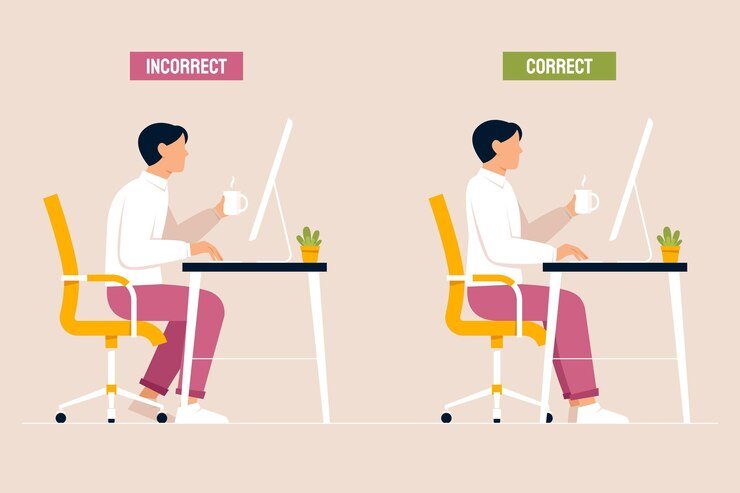
Many office workers struggle with the sedentary nature of desks! Even standing desks can be bad for you if you stay too still. Fortunately, you can learn specific practices which overcome the worst aspects of sitting still. This exercise will promote a good sitting posture and can easily be done anytime whilst working at your desk. It stretches and strengthens your spine effortlessly while sitting in a procedure known as spinal stacking.
1. Sit Down.
Sit down on your chair with your buttocks far back in the seat and your feet hip width apart on the ground. Ideally this will be done on an office chair with an adjustable backrest, otherwise just a firm chair you are comfortable sitting in.
1. Extend Your Spine.
Bend forward at the waist and tuck your chin in to lengthen your spine. This stops your body from swaying into an unbalanced posture, and can be repeated at any time to prevent swaying. When you bend forward your spine naturally stretches.
2. Extend Your Spine More.
Still sat with your bottom firmly on the seat, place both arms on either the seat, arms or other part of the chair, and push away from the seat so that your trunk is extended (you are pushing up with your arms while the weight of your bottom pushes down). Keep your feet firmly planted on the ground. Tuck your chin to your chest which lengthens your spine even more.
3. Hook Onto Your Backrest.
Move your spine backwards gently and slowly, body still extended, until it comes into contact with the backrest. If done correctly you should be sat an inch or so higher up than you usually would be. Use the shape of your backrest to rest very slightly above it (if your chair has no cushioned backrest, then place a cushion or a folded towel over the back). There should be a small roll of fat at the top of the backrest as your weight gathers slightly above it. You are essentially maintaining the stretch by using the top of the backrest and your body fat to keep it in place. Even just a gentle stretch and hold will make a massive difference in a very short period of time.
4. Relax Your Arms.
You should feel your body settle effortlessly into this position when you remove your arms. Your spine should feel stretched, probably more so than you will be used to feeling when sitting down. If you do feel this, don't worry, this is normal, it may take a few practices to get your posture correct. Make sure you don't arch your back too much backwards and a very gentle stretch is enough.
5. Realign Your Shoulders.
Lift your shoulders forward, move them upwards, then roll them backwards and let them settle in this new position. If you are used to having shoulders hunched forward you'll notice your hands cannot reach as far forwards when typing at your desk and you may need to move your chair. Realigning your shoulders prevents hunching and neck problems.
6. Neck stretch.
While sitting in this posture, you can extend your neck to improve healthy posture even more. Grab the sides of your head with your hands, keeping your shoulders lowered, and lift it upwards to extend your spine.
7. Repeat To Realign Yourself.
If you feel your posture sagging, simply follow the steps again, pushing your arms against the chair to realign yourself and get back into this new posture. You could do this once every half an hour to ensure your spine is kept nice and stretched not crumpled up. The idea is to allow all of our body weight to be distributed on the chair without compromising our posture. You might well find it uncomfortable to sit like this initially - don't worry - most of us have
unwittingly learnt terrible posture habits which are not supported by a lot of furniture. If you practise this exercise sufficiently it will actually increase your height. Beyond this you can enjoy improved blood and oxygen circulation and a greater comfort in and familiarity with your body.
Activity: Sitting Posture
Estimated time: 5 minutes
Try out the sitting exercise described to stretch your spine while seated, also visualise your spine stretch and each vertebra getting more room and receiving more nourishment and oxygen from the increased blood flow:
Sit, extend, extend some more, hook, relax, realign, stretch and repeat. (Re-read the instructions in the previous section to remind yourself!)
Using this frequently is like medicine for bad backs, go gently and be patient with yourself. This is suitable for individuals with back problems and even injuries but you should consult with a specialist about your sitting posture to ensure your needs are met.
5.6 Next Steps

In this final section of the course we invite you to reflect on what needs to happen next for you. We have provided the knowledge and introduced the skills for both touch-typing and shorthand.
What would you like to do next?
Fact
It takes 10,000 hours to become an expert in a highly competitive field, like football, but to go from “knowing nothing to being pretty good” only takes 20 hours (45 minutes per day for a month).
Source: Josh Kauffman - TEDx (How to Learn Anything)
How to Improve Your Typing
Practice: Good things take time to develop. If you find touch typing difficult at first, be kind to yourself. Our brains need time to adapt and for our neuronal pathways to be reinforced to the point where behaviour becomes automatic. Set aside regular practice, schedule it in your diary or set an alarm on your smartphone to go off every day. Make it a routine. Then leave it, rest, allow your brain to sleep and incorporate the practice into its brainy goings on. Keep repeating. You'll get there.
Focus on Accuracy: If you are new to touch typing you are probably going to make a lot of mistakes in the beginning. There is a well-known saying in martial arts: "If you can't do it slow, you can't do it fast." Rather than focusing on speed in the beginning, focus on hitting the right keys as this will be more instructive for your brain to memorise where the correct keys are.
Repetition is key: If you are learning a new language, you don't try and speak the words as quickly as possible, you begin by speaking them carefully until repetition cements them in your mind. Well, it is exactly the same with touch typing. Once you attain accuracy, the speed will come afterwards.
Take tests: regularly testing yourself, with the online tests suggested, or one of your own, will help you see progress and highlight any problem areas.
How to Improve Your Shorthand
Make it fun: Just like typing the key to success is practice. You can sit on the bus writing out outlines, you could copy out blogs or magazine articles. You can find exercises online and download transcription activities. You need to make it a fun and enjoyable game to maintain motivation and work towards a goal.
Keep going: Don't be put off by mistakes, look for your success and focus on what works for you!
Module Summary
This final module enhanced your typing skills and effectiveness by reviewing the various technologies and software which can speed you up and help you out. Ergonomic and specialist keyboards prevent injury and help your hands and fingers get into more natural and comfortable positions.
Preventing injury and finding ways to improve your typing and writing environment are vital for long-term effectiveness. This module also taught you how to prevent sitting injuries by adopting postures which actively stretch your spine, like doing yoga while sitting perfectly still!
We concluded with encouragement to find ways to practise and enhance your new skills and keep it fun. In just 20 hours, you can master these two skills which can radically transform your office and personal effectiveness.
.svg)