Module 1: Introduction to Gemini in Google Docs
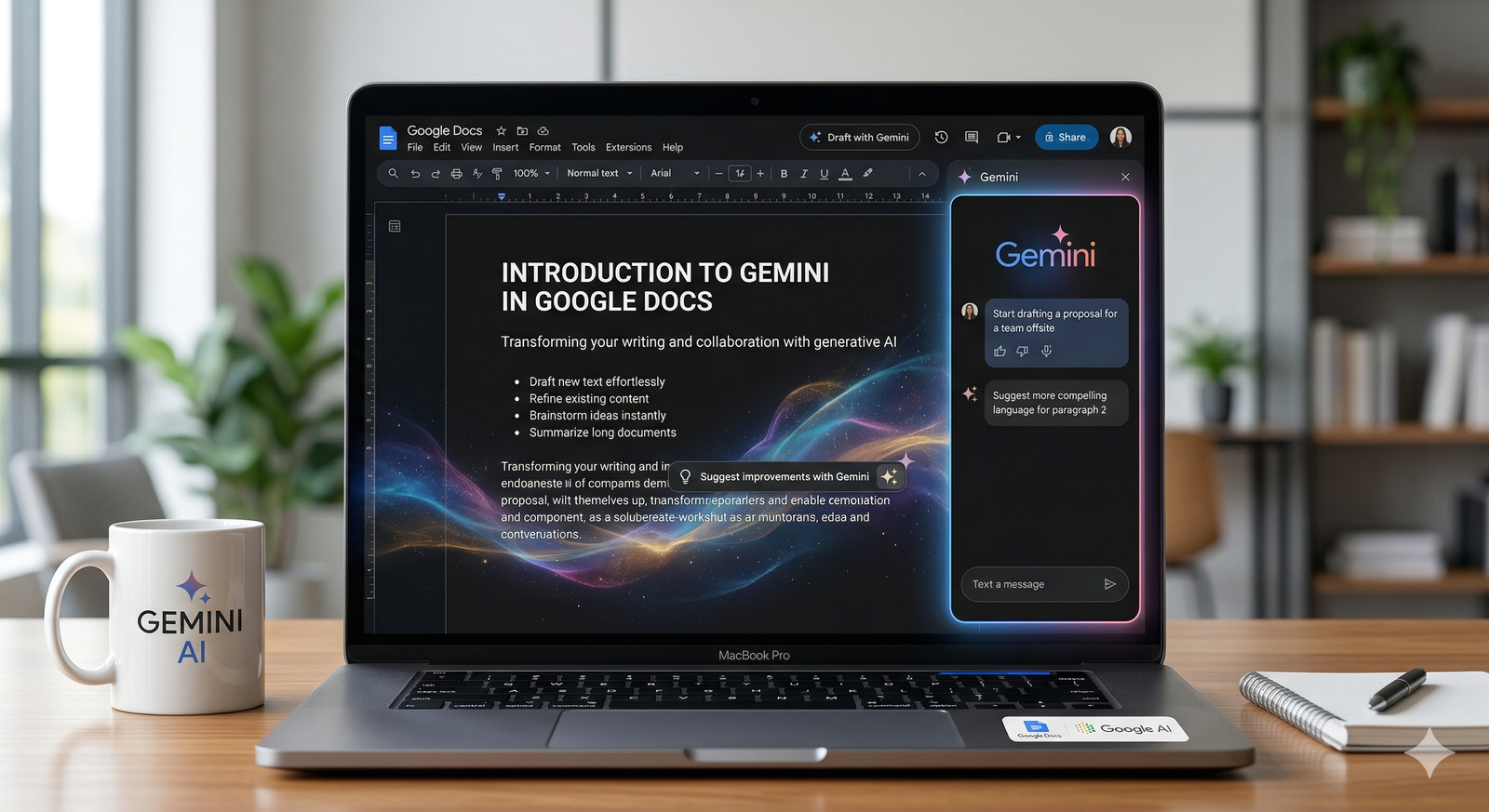
Google Docs has evolved from a standard word processor into an AI-powered writing environment. With the integration of Gemini, the focus shifts from the mechanics of typing and formatting to the higher-level tasks of ideation, synthesis, and strategic editing. This module covers the foundational features that allow you to collaborate with AI to produce professional documents faster.
1. The "Help Me Write" Command
The most significant addition to Google Docs is the "Help me write" floating button. This is your entry point for generating content from scratch.
Overcoming the Blank Page
When you open a new document, Gemini provides a prompt box. You can enter a simple sentence or a complex set of instructions. Gemini will then generate a draft that includes headers, bullet points, and paragraphs.
Drafting Artifacts: You can ask for resumes, cover letters, project charters, or even creative stories.
Contextual Starters: If you have an existing title, Gemini can suggest an introductory paragraph based on that title alone.
The Iterative Draft
After the initial text is generated, you aren't stuck with the first version. Gemini provides a "Refine" button that allows you to:
Formalize: Change the tone to be more professional for corporate audiences.
Bulletize: Break down dense information into digestible lists.
Elaborate: Add more supporting details to a brief section.
Shorten: Remove fluff for a concise executive summary.
2. The Gemini Side Panel (Your Research Assistant)
While the "Help me write" tool lives on the page, the Gemini Side Panel lives to the right of your workspace. This tool acts as a bridge between your document and the rest of your digital world.
Summarisation and Synthesis
If you are working on a long-form document, you can ask the side panel to "Summarize this document" to create a quick abstract or TL;DR. More importantly, you can use the "@" symbol to pull in data from other Google Workspace apps:
Gmail Integration: Ask, "What were the main concerns raised in the emails from @John regarding this project?" and insert the answer directly into your Doc.
Drive Integration: Summarize findings from a separate Google Sheet or PDF saved in your Drive without switching tabs.
3. Proofreading and Style Editing

Gemini goes beyond traditional spellcheck. It understands the semantics and tone of your writing, offering suggestions that improve the overall quality of your prose.
Tone and Clarity Checks
If a paragraph feels "clunky," you can highlight it and ask Gemini to "Rewrite this for clarity." It will offer several variations, allowing you to choose the one that best fits your personal voice.
Grammar and Conciseness: It identifies passive voice and suggests active alternatives.
Inclusive Language: Gemini can flag non-inclusive terms and suggest modern, professional alternatives to ensure your document is accessible to a diverse audience.
Smart Chips and Variables
Gemini helps you keep your document "alive" by suggesting Smart Chips. It can recognize names, dates, and files mentioned in your text and prompt you to turn them into interactive links.
4. Collaborative Brainstorming
Docs is traditionally a collaborative space for humans; Gemini adds a "third seat" to the table. You can use the AI to spark ideas when your team hits a creative wall.
Ideation Prompts
You can use the side panel to generate lists that serve as a starting point for group discussion:
"Give me 10 catchy titles for a blog post about sustainable gardening."
"What are five potential risks for a startup in the fintech space?"
"Create an outline for a 30-minute workshop on time management."
5. Best Practices for Gemini in Docs

To get the most out of these tools, follow these core principles:
Be Specific in Prompts: Instead of "Write a letter," try "Write a formal letter to a landlord requesting a repair for a leaking sink, mentioning the lease agreement from January."
Review for Accuracy: AI can sometimes be overconfident with facts. Always verify dates, names, and specific data points.
Maintain Your Voice: Use Gemini for the "heavy lifting" of drafting, but add your own anecdotes and personal insights to ensure the document feels authentic.
Google Docs Mastery Checklist
[ ] Have I used "Help me write" to create a document skeleton?
[ ] Did I use the "Refine" tool to adjust the tone of my draft?
[ ] Have I checked the Side Panel to see if there is relevant info in my Gmail or Drive?
[ ] Did I use Smart Chips to link to people or files mentioned?
[ ] Have I done a final human edit for personal style and accuracy?
.svg)